Security habits that fit a home office in a UAE flat
Most home office security is housekeeping rather than hardware. Here is how to set up accounts, networks, backups and paperwork so a shared flat stays workable and client records stay private.
This is for anyone whose office shares a wall, a router and often a computer with the rest of the household: freelancers, sole traders running a booking or travel business from a spare room, and couples who both work at the same desk. The aim is not a fortress but a small set of habits that keep client records private, keep work recoverable after a spill or a failure, and stop everyday domestic traffic from touching business files.
One machine, several people, separate accounts
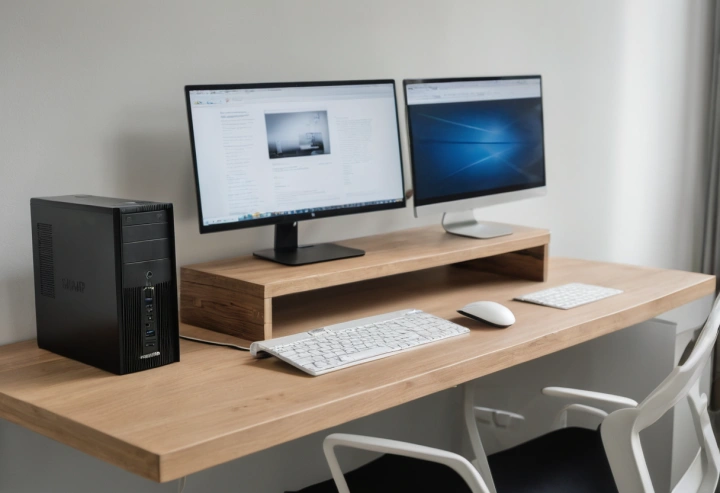
The commonest weakness in a home office is a single login shared by everyone in the flat. Once a partner, a teenager or a visiting relative can open the same desktop, every client file, saved password and mailbox is communal.
Create a separate user account for each person who uses the machine. Keep one account with administrator rights for installing software and changing settings, and make the accounts used for daily work standard accounts, so an installer cannot run without deliberate approval. Work happens in the work account only. Personal browsing, streaming and games happen elsewhere.
Set the screen to lock after a short idle period, and require a password to wake it. In a flat where the desk sits in the living room, that matters more than any antivirus subscription. If you handle passport scans or card details for bookings, turn on full disk encryption so a lost or stolen laptop is an inconvenience rather than a disclosure.
Before anyone else uses your machine, even briefly, switch to their account rather than handing over an unlocked session. It takes a few seconds and prevents most of the awkward conversations later.
A guest network, and a quiet corner for the router
Home routers usually offer a guest network alongside the main one. Use it. Visitors’ phones, the television, the smart speaker and the assorted household gadgets belong on the guest side; the work laptop, the printer and the network storage belong on the main side. Look for the setting that stops guest devices from reaching the rest of the local network, and switch it on.
Change the router’s administration password from the default, and give the main network a long passphrase that is not the building name or your surname. Turn off remote administration unless you genuinely need it. Check for router firmware updates when you check for laptop updates, which for most people means never unless someone reminds them.
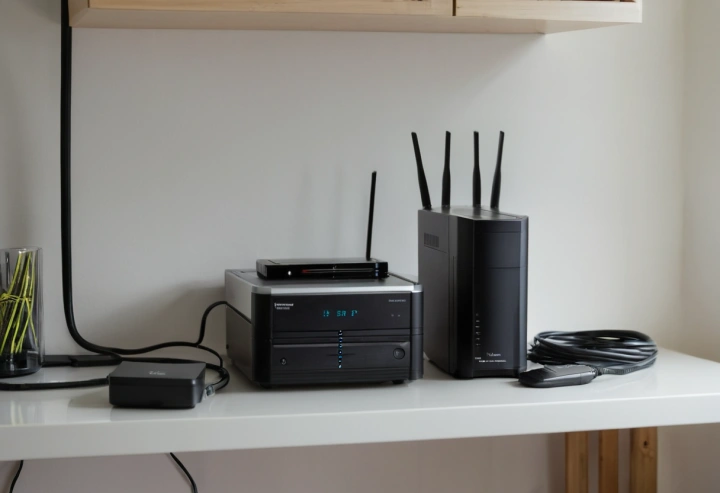
Physical placement counts too. Keep the router out in the open on a shelf rather than shut in a cabinet, ideally near the middle of the flat and away from the microwave and thick concrete walls. A router shoved behind the television in the corner gives weak coverage in the room where you actually work, and weak coverage pushes people into tethering and public networks. Our notes on choosing a home internet plan and placing the router cover that in more detail.
If your booking work depends on staying connected to airline and supplier systems through the day, treat the connection as part of the security setup rather than a separate concern. The always-on home office piece explains why interruptions cost more than they appear to.
Updates, on a schedule you will actually keep
Updates are dull, and they are the highest return habit on this list. Set the operating system, the browser and the office suite to install automatically. Restart properly once a week rather than closing the lid indefinitely; a pending update that never gets applied is the same as no update.
Retire software that no longer receives fixes, however familiar it feels. Old accounting packages and abandoned browser extensions are the usual offenders. Remove extensions you do not use, and be sceptical of anything asking for permission to read every page you visit.
For a booking business, the platform you log into deserves the same discipline. Ask any provider how they handle updates, access controls and support before you commit, which is part of the wider question of choosing a ready-made booking platform when you work alone.
Backups you have tested
A backup that has never been restored is a hope, not a plan. Aim for two copies of anything you would struggle to recreate: one local, one elsewhere.
The local copy can be an external drive on the shelf, connected on a fixed day and then unplugged. A drive left permanently attached is vulnerable to the same ransomware or power surge as the machine itself. Encrypt it, label it plainly, and store it in a drawer rather than balanced on top of the router where heat and dust collect.
The second copy should live outside the flat, whether that is a reputable cloud service on the work account or a second drive kept at a trusted address. Cloud sync alone is not a backup: a deletion or an encryption event spreads neatly to every device. Prefer a service that keeps version history.
Once every few weeks, restore a single file from each copy and open it. That small ritual is the whole test. Note the date somewhere you will see it.
Heat, humidity and dust are real constraints here. Keep drives out of direct sun, off the floor, and away from the window you leave open in winter. If the flat is empty for a long summer break, take the portable drive with you or move it somewhere cool and dry rather than leaving it in a sealed room.
Passwords, keys and the second factor
Use a password manager on the work account, with a long passphrase protecting the vault. Every service gets its own generated password, particularly email, banking, the booking platform and anything holding customer documents. Reused passwords are how one leaked forum account becomes a compromised mailbox.
Turn on two-step verification wherever it exists, starting with email, because email resets everything else. An authenticator app is generally steadier than text messages, especially if you swap SIM cards when travelling. Save the recovery codes somewhere offline and locked, not in a note on the desktop.
A short checklist worth taping inside a cupboard door:
- Separate accounts for each user, one administrator held back for changes.
- Guest network for visitors and household gadgets, admin password changed.
- Automatic updates on, weekly restart, unused extensions removed.
- Two backup copies, one unplugged and encrypted, restore tested recently.
- Unique passwords in a manager, two-step verification on email first.
- Paper records locked, surplus shredded.
Never share a login with a helper or a colleague by message. If someone needs access, create their own account with the permissions they need and remove it when the arrangement ends.
Paper still needs locking away
Travel and booking work generates paper: passport copies, visa documents, signed forms, itineraries with card details scribbled in the margin. Digital hygiene does nothing for a stack of photocopies sitting on the desk while the cleaner is in.
A single lockable drawer or a small filing cabinet is enough for most home operations. Keep the key off the obvious keyring hook by the door. Sort papers into three groups: needed now, needed for records, and finished. Anything in the third group either goes into the locked archive or gets shredded, and a cross-cut shredder costs less than the trouble a bin bag of passport copies could cause.
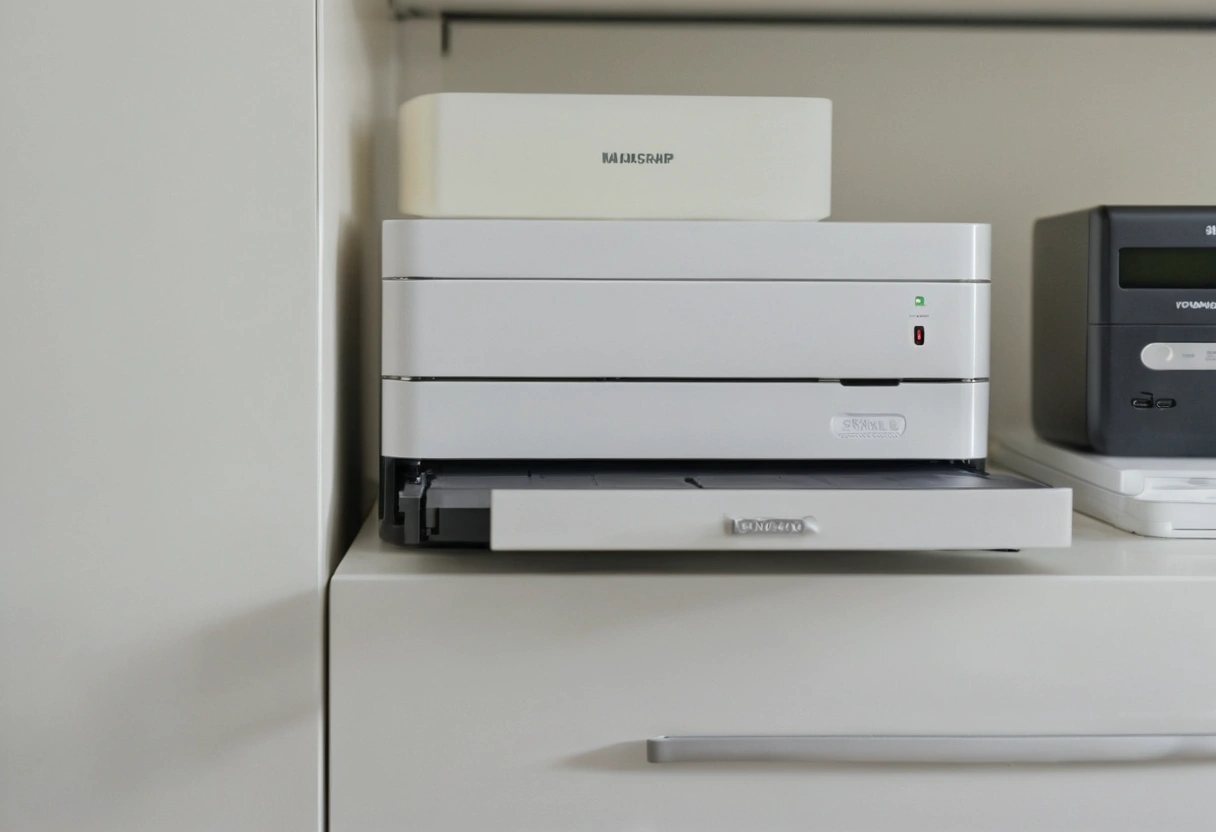
Print only what you must, and collect it from the printer straight away. When a document has done its job, scan it into the encrypted work account if you need to retain it, then destroy the paper. Retention periods and record-keeping obligations vary by activity and licence, so it is sensible to get professional advice before you settle your own rules rather than guessing.
Start with one hour this week
Do not attempt all of this in an evening. Pick the account separation first, because it shapes everything else: create individual accounts, demote daily users to standard, keep one administrator, set the screen lock. Then move visitors and gadgets onto the guest network.
Book a recurring slot in the calendar, half an hour every few weeks, for updates, a backup restore test and a glance at the paper drawer. Write the date of the last test on a label stuck to the backup drive. That label, more than any product, tells you the system is real.