Keeping booking work online through a wobbly home connection
Booking work lives inside other people's systems, so a brief drop at home can cost more than the minutes it lasts. Here is how to set up the connection, the power and the fallback properly.
If you sell travel from a spare room or a corner of a flat, your working day happens inside somebody else’s system: an airline’s supplier portal, a consolidator’s booking screen, a bed bank, a transfer or activity supplier. That makes the connection into your home part of the service rather than a background utility. This piece covers what to put in place, where to put it, and how to look after it so a flicker in the building’s power or a slow evening does not turn into a half-made booking.
Why booking systems mind a brief drop more than email does
Email forgives almost anything. A message sits on a server and arrives when it arrives. A booking session behaves differently. You are signed into a terminal or a web desk that holds your work in progress on its side, expects a reply within a short window, and closes the session if you go quiet too long. Come back after a minute of dead air and you may find yourself logged out, with the passenger names, the segments and the fare notes gone, and the seat you were holding released.
The awkward failures are the ones in the middle. A request goes out to price a fare or confirm a segment, the line drops before the answer comes back, and you are left unsure whether the supplier recorded it. That is why the habit matters as much as the hardware: after any interruption, check the booking reference or the queue in the supplier system before you send anything again. A duplicated segment or a second ticket is worse than a lost minute. The same logic applies to card payments taken over a hosted page, where a stalled confirmation leaves you guessing about the charge.
None of this needs technical vocabulary to fix. It needs a connection that does not wander, power that does not blink, and a way to keep working when the main line fails.
A steady line rather than a fast one
For booking work, consistency beats headline speed. Typing into a supplier screen uses very little data; what it cannot tolerate is delay that arrives in bursts. Wireless connections inside a flat deliver exactly that: fine most of the time, then briefly poor when a neighbour’s network crowds the same channel, a microwave runs, or someone starts streaming in the next room.
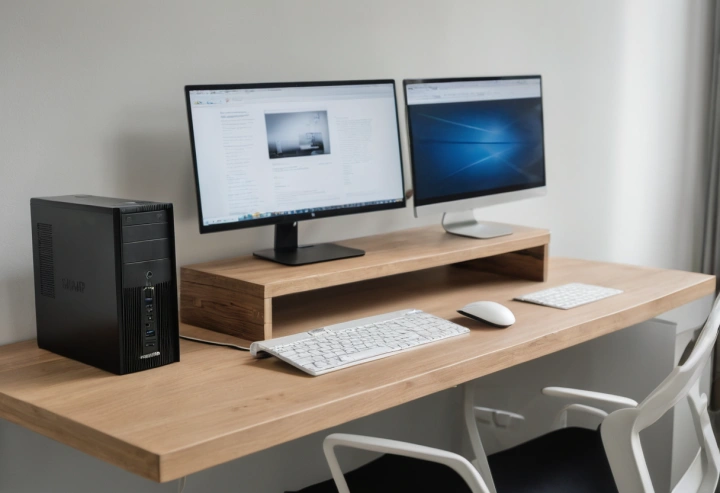
So treat the booking machine as a fixed appliance. Run a network cable from the router to the desk and plug it in. If the laptop has no socket for it, a small adapter solves that. Cable removes the variable you cannot see, and the temptation to move the working spot to wherever the signal looks strongest. Our note on choosing a home internet plan and placing the router covers the earlier decisions about the line itself and where the box should sit.
Wireless still has a job. Phones, tablets, printers, the household’s own devices: keep them on wireless, ideally on a separate guest network so they are not sitting alongside the machine that holds supplier logins. That separation is cheap to arrange and is covered in our piece on security habits for a home office.
A small battery box for the flickers
An uninterruptible power supply is a plain thing: a box with a battery inside that sits between the wall socket and your equipment. When the mains hiccups, the box carries on supplying power without a gap, and beeps to tell you it happened. Most brief interruptions in a flat are shorter than the time it takes to notice them, which is precisely the problem, because a router that loses power for an instant restarts and then takes a few minutes to reconnect.
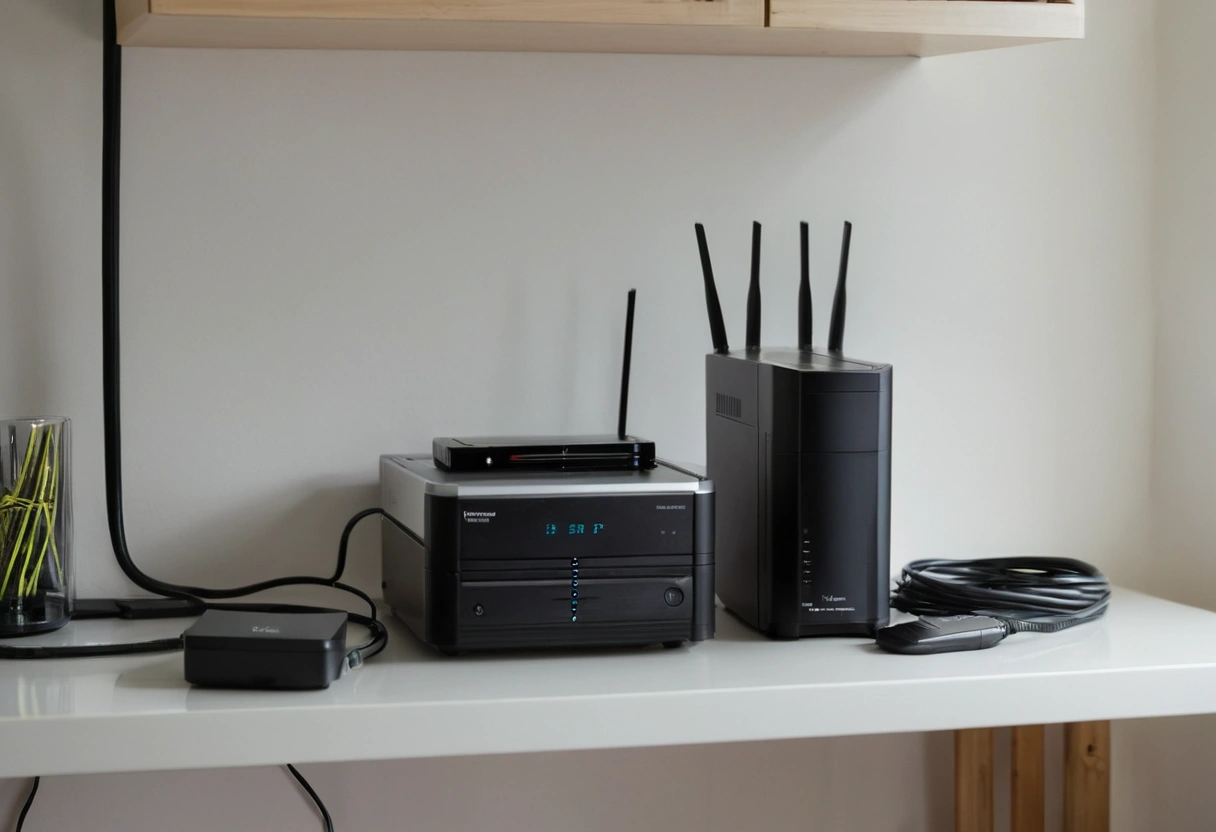
Size it modestly. The point is to keep the small boxes alive: the router, the fibre termination or modem, any network switch, and the docking station or monitor if you want the screen to stay up. A unit sold for a single desktop computer is generally enough for that group, and it will hold them for a good while, long enough to finish a booking and save your notes. Do not plug a laser printer into the battery sockets; it draws a heavy surge when it warms up and will complain or overload the unit. Use the surge-only sockets for that.
Two practical points about living with it. The beep is loud in a quiet room, and many units let you mute the alarm, though leaving it audible is useful if the box lives out of sight. And the battery is a consumable part. Expect to replace the battery or the whole unit after a few years, and write the purchase month on the case in marker so you are not guessing later.
Where it all lives, and how to care for it
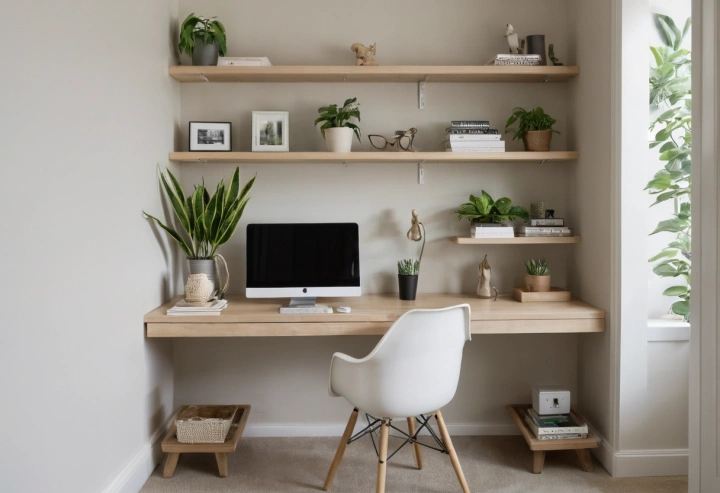
Most flats in the UAE put the incoming connection in a cupboard near the entrance, sometimes a shallow metal cabinet, which is a poor home for a router: enclosed, warm, and far from the desk. If you can, bring a cable from that cabinet to an open shelf near the working area and stand the router and the battery box there, upright, with a hand’s width of clear air around each and nothing stacked on top. Avoid a closed cabinet, a windowsill in direct sun, and the floor directly under an air conditioning vent where condensation and dust collect.
Heat and dust quietly shorten the life of this equipment here. Wipe the vents with a dry cloth every couple of months, keep the shelf clear of paper piles, and give the battery box space rather than wedging it behind books. Label both ends of every cable with a strip of tape and a word: desk, router, fibre box, printer. When something fails at an inconvenient hour, labels turn a rummage into a quick check.
A short routine, done monthly, keeps the arrangement honest:
- Unplug the battery box from the wall while the router is running and confirm the connection stays up, then plug it back in.
- Switch the main line off and connect through the backup, opening a supplier screen to check you can sign in and work.
- Look at the cables and sockets for anything loose, warm or dusty.
- Check that the notes file with references and supplier contacts is where you expect it to be, and backed up.
The second connection, and practising the switch
A spare connection is only worth having if it is genuinely independent. A second line from the same provider, running through the same building duct, fails at the same moment as the first. What you want is a different path: a mobile router with a data SIM on a different network, or a fixed wireless home service, kept charged and switched on occasionally so it does not arrive flat or out of date.
Test the coverage where the desk actually is, not by the window, and check the mobile signal on a phone in that spot at the times you normally work. Some supplier desks and payment pages behave oddly when your apparent location changes, and some accounts are restricted by network or country, so find that out during a quiet afternoon rather than during a ticketing deadline. Keep the fallback login details written down somewhere secure, and make sure the booking machine can join the backup network without a hunt for passwords.
Then rehearse. Once a month, do a small piece of real work over the backup: open a booking, read a fare rule, save a note. A short spell of practice turns a spare box into a working plan.
Your next step
Start with the cheapest and most effective change: order a network cable long enough to reach the desk from the router, plug the booking machine in, and label both ends. Then add the small battery box for the router and the fibre box, and only after that spend money on a second connection. Write the monthly test into your calendar as a recurring task with a name you will recognise, and keep a plain text file of live booking references and supplier contact numbers on the desk, backed up, so that if the line fails mid-booking you know exactly what to check first. If you are still deciding how the rest of the setup fits together, our overview of the technology layer of a home booking office sets out the order of the other decisions.